Google Business Verification Video: Record It and Pass
What Google checks in a business verification video, the recording order that passes, and what to do when the video is rejected or will not upload.
An owner sends over the clip he uploaded on Monday. It opens on his dashboard, swings past a closed garage door, and stops. No sign, no register, no workshop. Google rejected it.
A Google business verification video is one continuous recording you make inside your Business Profile on a phone. Google wants the street and your permanent sign. It also wants proof you run the place, all in one take of at least 30 seconds. Review takes up to 5 business days.
Most guides stop at the requirements list. We prep owners the morning they record. This page carries the takes that fail and the order that gets through. It also covers the loop after a rejection.
We also pulled the live results for this query before writing. 6 of the 20 first-page slots were YouTube, Facebook or forum posts, and an AI Overview sat above them all.
TL;DR
- Google asks for one unedited take of at least 30 seconds, filmed inside the app.
- The order that passes runs sign and street, door, proof of management, back room.
- Most rejections trace to 4 causes, and each one has a different fix.
- A rejected video goes back through Review issues on the same request.
What is Google asking for when it asks for a business verification video?
Google asks for evidence of 3 things. The address is real and the business is visibly there. You also have to show that you run it, all in one unedited recording.
Google’s own page sets the rules (verify your business with a video recording). The video has to be unedited and unique. It runs at least 30 seconds, and you record and upload it from a mobile device through the profile.
Account numbers and tax paperwork stay out of frame. So do other people’s faces.
The method exists because a code proves someone can answer a phone. A video proves the business sits where the profile says it sits. The listing shows in Google Search and Maps, and this recording is Google’s check that the business behind both is real.
The most complete written guide on this query is Sherry Bonelli’s on Search Engine Journal. It covers the planning and the proof categories well, and it stops before the part owners get stuck on.
The video is evidence about one address, so film what proves it.
What must the recording show, and in what order?
Start outside, with the sign and the street in one frame. Walk in through the door without cutting. Show one clear sign of management, a register or a stockroom. Finish on the work area.
Google splits the requirement by business type. A storefront or hybrid business has to show all of this (video requirements for storefront businesses):
- Location markers that tie the shot to the address
- Permanent signage with the business name on it
- Proof of management, like a cash register or a point of sale
The order we walk owners through, and the one that gets through review:
- Stand back far enough that the signage and the street share the frame.
- Walk to the door and inside without stopping the recording.
- Move to the register, the stockroom or the point of sale.
- Hold on the part of the space a customer would see.
- Stop the recording inside the app.
The sign has to match the profile name, and that is the detail we check first. A listing set up as Ridgeline Roofing and a wall that reads Ridge Line Roofing LLC is a mismatch. A reviewer spots it in a second.
One unbroken walk from the street to the back room beats a polished clip of any length.
The 60 seconds before you press record
Our prep list for the minute before recording is short.
- Lights on inside, so the work area is not a black room.
- Counter cleared, so the register is the only thing on it.
- Van parked so the sign is in frame from the street.
We run that list on a call, with the owner standing at the door and the phone already in hand. The 3 fixes cover the failures we see most.
A dark interior proves nothing. A utility bill on the counter puts an account number in frame. A van at the curb hides the one thing the reviewer came for.
The take is usually lost in the minute before recording starts.
How do you record it inside the app?
Open your profile in the Business Profile app and choose Get verified. Enter the business phone number, then pick Business video. Allow camera and microphone access. Record inside the app, then upload from there.
The path is Google’s, and it sits under submit your video. In order:
- Sign in with the account that manages the listing.
- Choose Get verified and confirm the business phone number.
- Pick Business video from the methods on offer.
- Accept the camera and microphone prompts.
- Record the walk in one take without leaving the app.
- Upload from the same screen and wait for the review.
The app lets you watch the take and tap Try again before the upload, which is the cheapest place to catch a bad frame.
The permission prompt is where a take dies quietly. An owner taps Don’t allow out of habit, keeps recording, and hands the reviewer 40 seconds of black video.
If you manage more than one listing, the app asks “Are these your businesses?” before the walk starts, so pick the right one first. GPO’s agency guide covers that multi-location case in detail, and it is a different job from recording a single shop.
The recording happens inside the profile. A file made anywhere else has no upload slot.
How long should the video be, and what disqualifies a take?
The floor is 30 seconds, and Google publishes no maximum. An edited take fails, and so does a clip you recorded earlier or for another profile. Sensitive documents and other people’s faces in frame also disqualify it.
The AI Overview above this search says 30 seconds to 2 minutes. Trade coverage repeats the 2-minute ceiling as though Google had set it. Google’s page sets the 30-second floor and stays silent on the top end.
We aim owners at 60 to 90 seconds. The walk from the street to the back room takes about that long at a normal pace. Nothing sits in the camera’s path long enough to drift into frame.
Aim for 60 to 90 seconds and keep the phone level and slow.
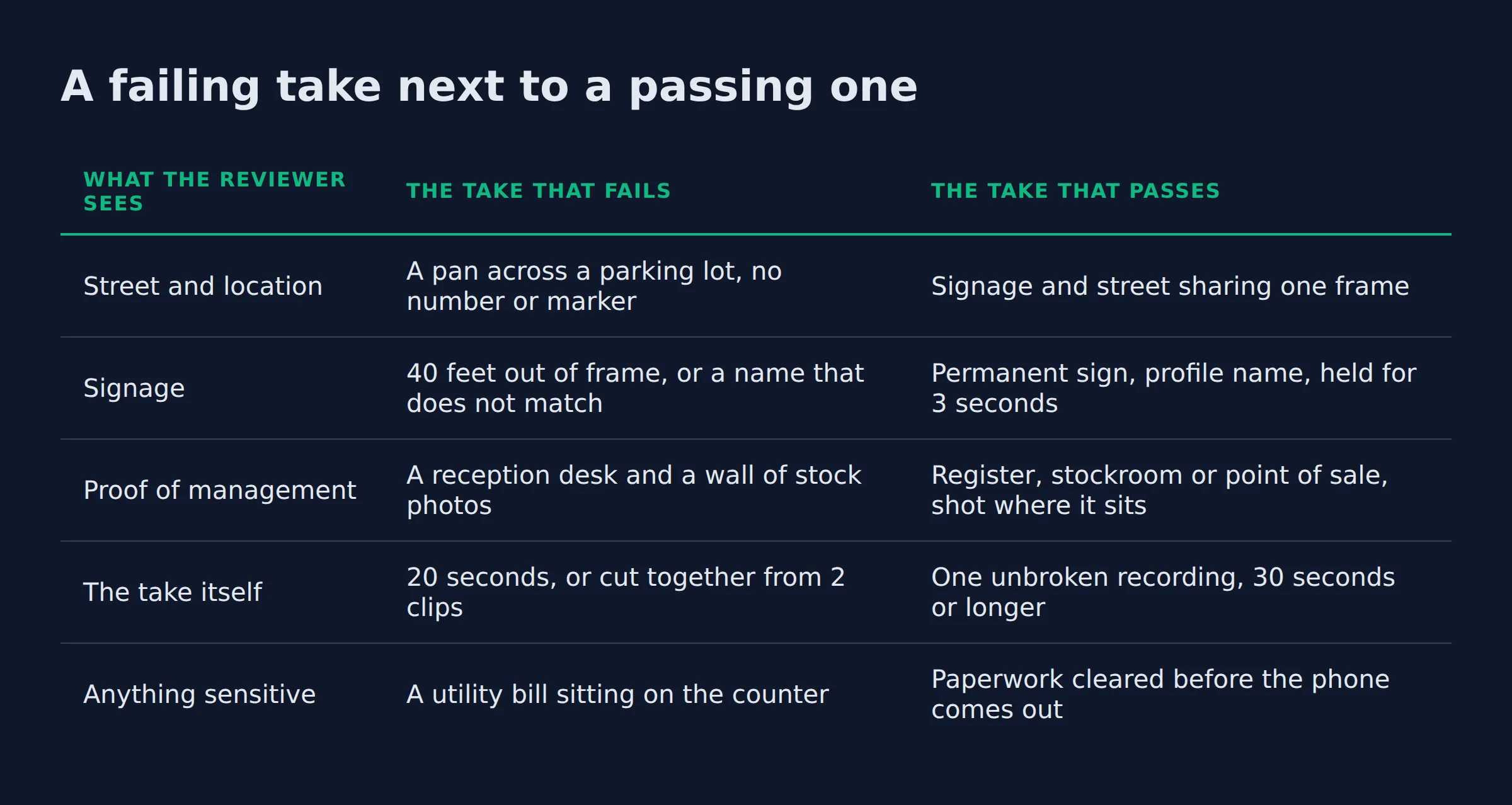
A failing take next to a passing one
Here is the pair we walk owners through, side by side.
| What the reviewer sees | The take that fails | The take that passes |
|---|---|---|
| Street and location | A pan across a parking lot, no number or marker | Signage and street sharing one frame |
| Signage | 40 feet out of frame, or a name that does not match | Permanent sign, profile name, held for 3 seconds |
| Proof of management | A reception desk and a wall of stock photos | Register, stockroom or point of sale, shot where it sits |
| The take itself | 20 seconds, or cut together from 2 clips | One unbroken recording, 30 seconds or longer |
| Anything sensitive | A utility bill sitting on the counter | Paperwork cleared before the phone comes out |
The ranking guides list the requirements, and neither shows a rejected take beside an accepted one. The pair above is what we use on calls, because owners recognise their own take in the left column faster than they read a spec.
A pass and a fail usually differ by one frame.
Why was the video rejected?
A rejection almost always means one of 4 things. A required beat was missing, or something sensitive sat in frame. A take can also fail on length or on a recording made earlier.
The 4 causes, in the order we see them:
- Too short or cut. The clip runs under 30 seconds, or the owner edited 2 takes together.
- Name mismatch. The sign, the profile and the website disagree on the business name.
- No proof of management. The camera stays outside and never shows the register, the stock or the tools.
- Faces or paperwork. A customer, an employee or a business license ends up in frame.
Google sends the reason back to the profile, where a Review issues item appears with the notice. The first example on its own list is a business name that was not visible on the storefront. That item is the only place the stated reason shows up (Google’s resubmission steps).
Read the notice before you film again. Owners re-shoot the same take and get the same answer.
How do you re-record and resubmit?
Open the profile, tap Review issues, and read the reason on the notice. Record a fresh take that fixes that specific failure, then upload it through the same path. An upload error often clears on a retry before any review starts.
A resubmission is not a new verification request. No new code arrives, and the profile stays in the same state while you work. Expect another review window of up to 5 business days once the new take lands.
When an owner sends us a rejected clip, we watch it once with the shot list open. The cause turns up in the first 10 seconds about as often as not, and it is rarely the part he suspects.
The dark room gets blamed. The sign being out of frame is usually the reason.
Change one thing per attempt, so the next rejection tells you something new.
What changes for a service area or home-based business?
A service area business has no storefront, so the street and the equipment carry the take. Film the street sign or a landmark at the address. Show the tools you own, then a document that ties you to the address.
Google’s list for a service area business asks for 3 kinds of proof (video requirements for service area businesses):
- Street signs or landmarks that identify the address
- Tools, equipment or branded apparel you work with
- A business permit, an invoice or a utility bill that matches the profile name
The same page says to avoid filming empty land. Open ground with no marker gives a reviewer nothing to check the address against.
The areas you serve are a separate setting from the video. How a service area business sets its areas covers that part, and Google defines service area and hybrid businesses the same way.
For an operator running out of a house, we start at the street sign. From there the camera pans to the driveway and the van lettering, then to the shelf of equipment in the garage. A driveway-only clip leaves the reviewer with no way to tie the van to the address.
With no sign to film, the street and the equipment do the sign’s job.
Is a live video call a different method from a recorded video?
Yes. A live call is a real-time walkthrough with a Google support rep on video, and it only runs inside your profile’s business hours. A recorded video is a file you shoot and upload.
Both confirm the same address, and Google picks which one you get.
Google states that the verification methods are determined by Google, and it names video as its own preference where a business qualifies for it. The list on your profile is the list you work with.
The prep differs in one way. A recorded take can be re-shot until the framing is right. A live call happens once, with an agent asking you to turn the camera toward the door or the register.
We book those calls for the middle of a working day, when someone is on site and the yard is not empty. A live call into a quiet building wastes the slot.
Take the method Google assigned, then prepare for the one you actually got.
Where should you start this week?
Give the profile a week before you record. Fix the name and the hours first, do one dry run, then film once the details match.
If the video option never appears, the choice was made before you opened the app. The other verification methods Google offers all start from the same Get verified button.
The 3 things worth doing before you record:
- Get the name on the profile, the sign and the website to read the same.
- Set the hours you actually answer the phone, because a live call lands inside them.
- Walk the shot order once with the camera off, at a normal pace.
A name that matches on the sign and on the listing removes the most common rejection cause.
If you would rather have the listing checked before you record, our Google Business Profile work starts with the same list.
If you want a straight read on whether your profile is ready for the video, a fifteen-minute call covers it.
FAQ
Can you record the video on a laptop, or upload a file from a camera?
No. The take has to be recorded on a mobile device through the profile, so a laptop or a camera file has no upload slot. Use the Business Profile app on a phone and accept the camera and microphone prompts before you start walking.
What if the video will not upload on the first try?
Retry from a stable connection. Most upload failures come from a weak signal or a phone that ran low on storage mid-file. Move to wifi, check free space, and use the retry on the upload screen before you record a new take.
Can an employee record it instead of the owner?
Yes, if that person has manager access on the account and is on site when the take happens. Someone who works in the building can show the register and the stockroom. The recording itself still has to come from the profile.
Can you reuse a video you already recorded for another location?
No. The recording has to be new and unique to that profile, and a recycled clip reads as one take covering two places. Record a fresh walk at each address, even when the layouts look identical.
What if Google never offers the video option at all?
Then you work with the method Google gave you. Video appears only for profiles that qualify, and the assigned method is the one to prepare for. Start that path the same week and fix the name, address and hours once verification lands.
Is there a Reddit trick that skips the recording?
There is no shortcut, and posts claiming one usually describe a profile where Google assigned a different method. Nothing outside Google verifies a listing. Treat any offer to clear it without access to the business as a reason to walk away.